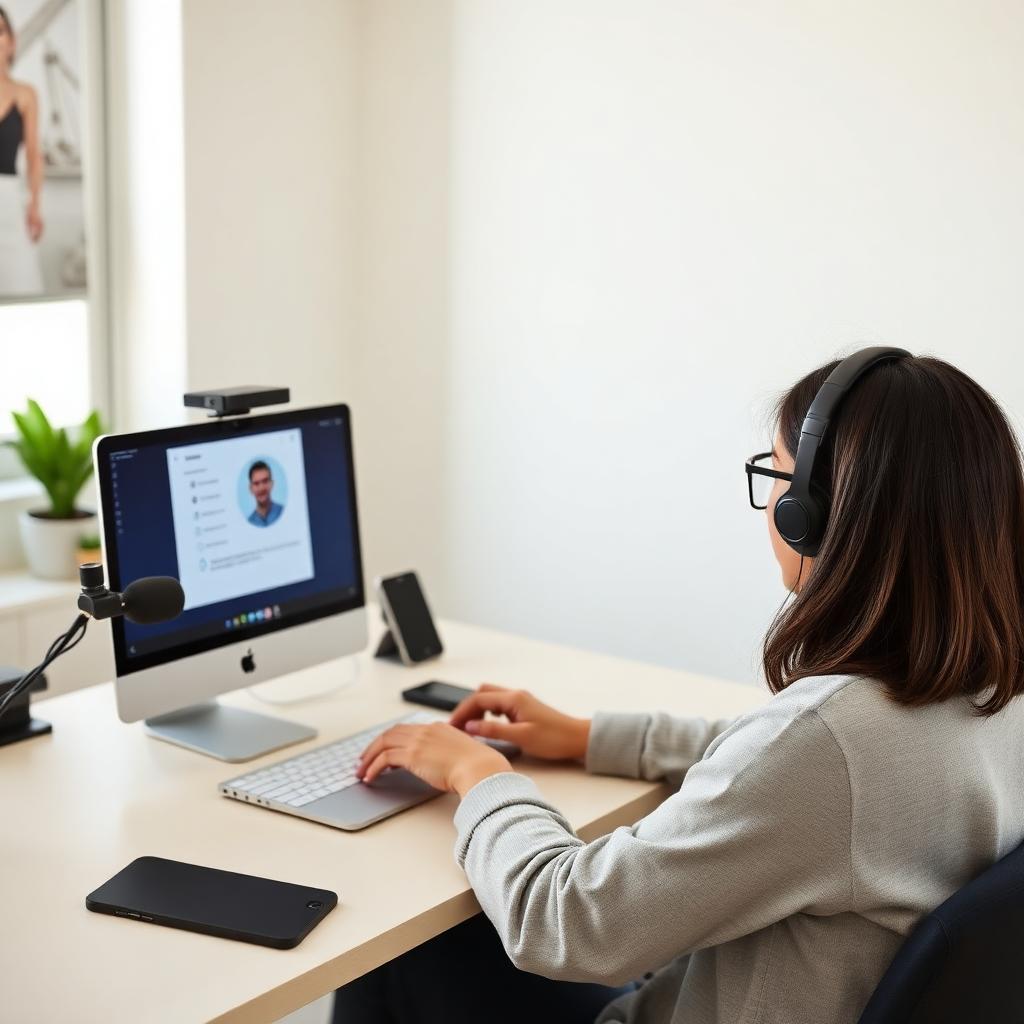
What Honorlock actually is
Honorlock is a browser-based remote proctoring platform used by hundreds of universities and certification bodies across the United States. Unlike some proctoring tools that install a full lockdown application on your machine, Honorlock runs as a Chrome extension paired with cloud-side AI and on-demand human proctors. That lighter footprint is what makes it popular with schools, but it also means the platform relies heavily on webcam, microphone, screen, and network signals to decide whether a session is legitimate. If you understand exactly what those signals look like, you can prepare a technical environment that sails through the checks instead of tripping them.
How Honorlock monitors your exam
Every Honorlock session records three streams in parallel: your webcam, your microphone, and your full screen. Before the exam even begins, the extension asks you to complete an ID check, a 360-degree room scan, and a desk scan. During the exam, machine-learning models watch for the usual behavioural flags — head turns away from the screen, additional faces in frame, phones held up to the camera, background voices, and long silences broken by sudden typing. On top of the AI layer, Honorlock uses a "search-and-destroy" system that scans the public web for leaked test questions and can trigger a live proctor pop-in if it thinks you have a suspicious tab open. Every flagged moment is timestamped and delivered to your instructor for review after the exam ends.
Why most candidates fail the technical check, not the exam
The single biggest reason students get flagged in Honorlock has nothing to do with academic dishonesty — it is a broken technical environment. A flickering webcam, a microphone that drops out, an unstable Wi-Fi connection, a second monitor that was never disconnected, or an unexpected notification popping up mid-exam will all generate incident reports that reviewers cannot distinguish from cheating. Fixing the environment before you launch the exam is therefore the highest-leverage preparation you can do.
Building a clean technical environment
Start with the machine itself. Use a laptop or desktop that meets the minimum specs (a recent version of Chrome, at least 4 GB of RAM, a working built-in webcam and microphone, and a stable broadband connection of 5 Mbps or better). Close every application other than Chrome before you install the Honorlock extension, and sign out of any accounts you do not need. Disable notifications system-wide — on macOS turn on Do Not Disturb, on Windows enable Focus Assist — because a single Slack or iMessage pop-up during the exam is enough to generate a flag. Unplug any secondary monitor physically, not just via display settings, since Honorlock detects extended displays even when they show nothing.
Network, room, and lighting setup
Move to a wired ethernet connection if you have one; if not, sit as close to the router as possible and ask everyone else in the house to stay off streaming services during your exam window. Choose a quiet room with a door you can close, a plain wall behind you, and no visible papers, sticky notes, whiteboards, or second devices. Lighting should come from in front of you, not behind — a window at your back will silhouette your face and confuse the facial-recognition model. Keep your phone out of the room entirely; do not just flip it face-down on the desk, because the room scan will catch it.
Practising the check-in flow
The pre-exam check-in is where most avoidable problems happen. Practise it end-to-end at least twice before your real exam. Photograph your ID under good lighting so the text is sharp and the photo is fully visible. When you run the room scan, move the camera slowly — a fast, jerky pan is one of the most common reasons a proctor asks you to redo it. Show under the desk, along the walls, across the ceiling, and finally the surface of the desk itself with your webcam facing down. Rehearsing this sequence once or twice removes the panic factor on exam day.
The Ace Proctor technical readiness process
Our team specialises in getting candidates through the technical layer of proctored exams. Before your exam we run a full environment audit — testing your webcam frame rate, microphone quality, upload and download speed, Chrome extensions, background processes, and notification settings — and hand you a checklist of everything you need to change. We then walk you through a mock check-in that mirrors Honorlock's real flow, including the ID capture, room scan, and desk scan, so nothing on exam day is unfamiliar. On the day itself, we stay on standby to talk you through any last-minute issue — a driver update, an audio drop-out, a proctor pop-in — so you can focus entirely on the questions in front of you.
What to do if you get flagged mid-exam
If Honorlock triggers a live proctor pop-in during your exam, stay calm and respond through the chat window. Most pop-ins are routine — a request to redo the room scan, confirm your ID, or move an object out of frame. Comply promptly, avoid arguing, and continue the exam. Panicking, closing the browser, or disconnecting will almost always be logged as a policy violation, whereas a calm compliance rarely is.
Final word
Passing a Honorlock exam confidently is a technical and psychological problem, not just an academic one. Build a clean environment, rehearse the check-in until it is muscle memory, and have a plan for the moments when something unexpected happens. Do that, and Honorlock becomes just another browser tab rather than the thing standing between you and your certification.
Sitting a Honorlock exam soon? Our team runs a full technical readiness audit and stays on standby throughout your exam so the platform never gets in your way.
Keep reading
Thinking about becoming an AWS Certified Developer? Before you spend $150 booking the DVA-C02 exam, here is exactly what you need to know.
Studying for CompTIA Security+ SY0-701? Two preparation methods stand out above everything else — here is how successful candidates actually pass.